 CncCraft
Saving toolpaths New in CncCraft
For the router you save the toolpaths as a G-code file.
Click Save in the Simulation & Export area at the bottom right – or choose File ▸ Save toolpaths ….
What gets saved
- Selected toolpath: only the one clicked in the list.
- Visible toolpaths: all visible toolpaths in the order of the list.
A line below states how many toolpaths are involved and – if several tools are needed one after another – how many tool changes that is.
Several tools: one file or one per tool
If the toolpaths need more than one tool, CncCraft asks when saving:
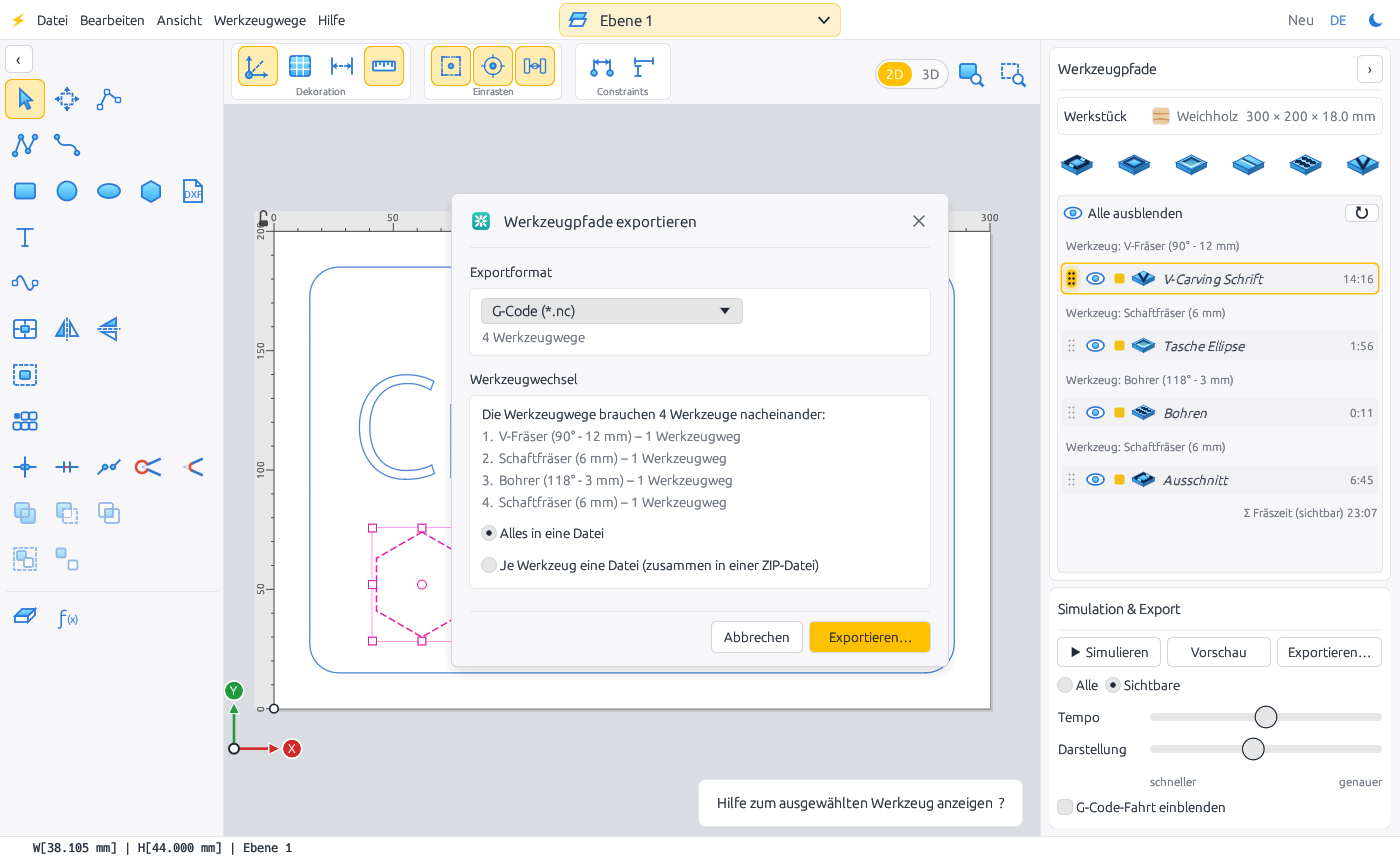
- One file per tool: for each run of toolpaths with the same tool a separate G-code file is made; all files go together into a ZIP. The files are named
<name>_01_<tool>.nc,<name>_02_<tool>.ncand so on: first the general file name (the ZIP's name), then a running number in list order, then the tool (for examplesign_01_End-mill-6-mm.nc). So the files line up in the right milling order. - Everything in one file: as before, one file with all toolpaths; before each tool change the change command stands (
T… M6, not for GRBL).
With the GRBL output, “everything in one file” is not possible with several tools: GRBL has no tool change, so only one file per tool remains.
A tool change counts only where the tool changes from the toolpath before: two toolpaths in a row with the same cutter stay in one file. If the same cutter appears again later after a different one, that is a new section with its own file.
Post-processor
The Post-processor choice sets how the G-code is written:
| Entry | Extension | Unit |
|---|---|---|
| G-code (mm) | .nc | Millimetres |
| G-code (inch) | .tap | Inches |
| GRBL (mm) | .gcode | Millimetres, for GRBL controllers |
Then click Save toolpaths … and choose the destination and file name.
Check every new file in the preview and run it first without material or in scrap. Make sure the origin and safe height (Create and set up a new job) match your machine.