 CncCraft
Toolpath preview
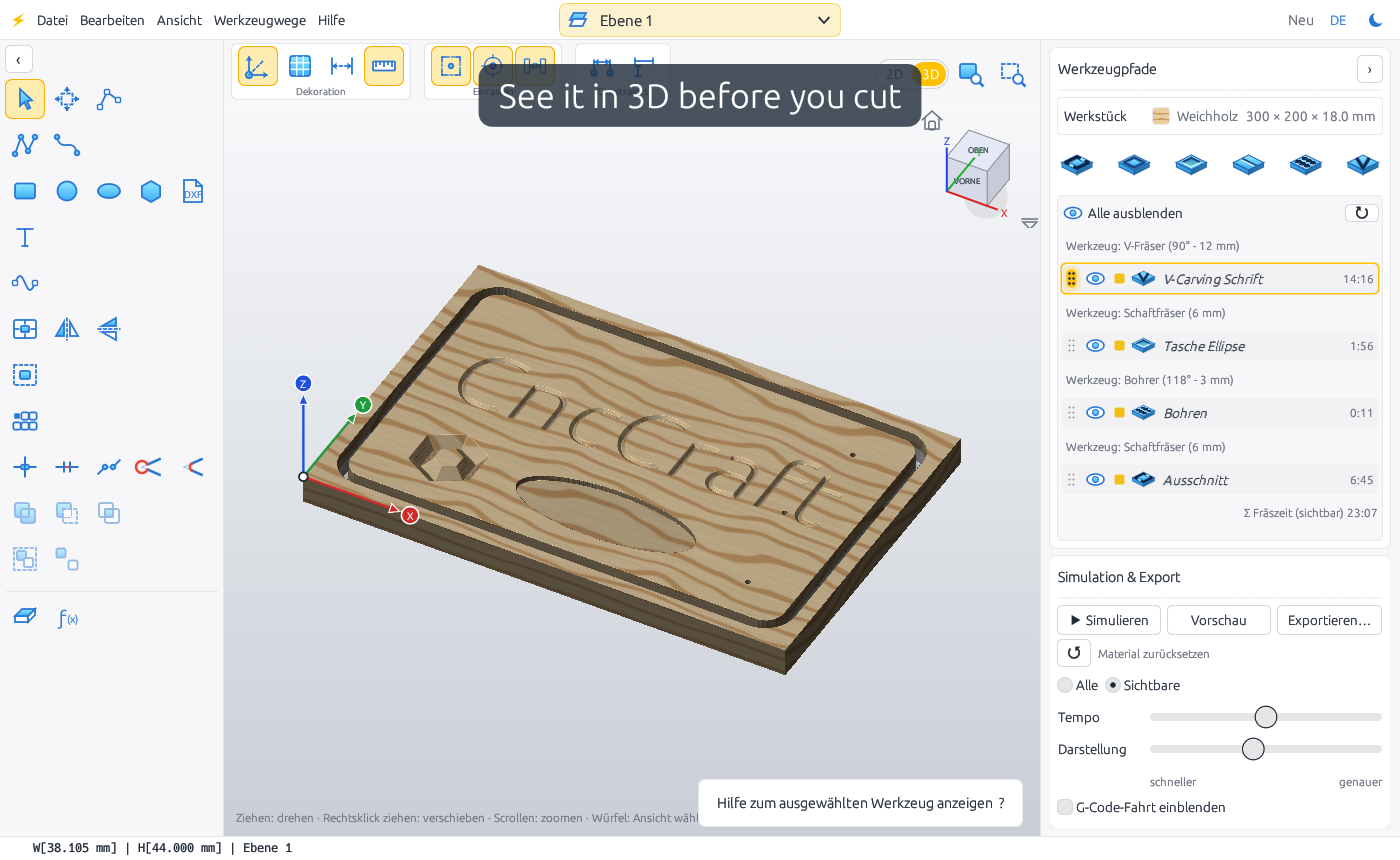
The preview plays the toolpaths on the workpiece and shows what the router will remove.
The Simulation & Export area at the bottom right has two buttons: Preview and Save. Preview starts the simulation; CncCraft switches to the 3D view for it.
| Control | Effect |
|---|---|
| ▶ Play | Runs the toolpaths one after another; the material is removed as it goes. |
| ⏭ At once | Shows the end result straight away. |
| ↺ | Resets the preview to the untouched material. |
| All / Selected / Visible | Which toolpaths the preview shows: all, the one clicked in the list, or the visible ones. |
| Speed | How fast the animation runs. |
| Detail | How finely the material is drawn: “faster” on the left, “more precise” on the right. This only changes the display, not the toolpaths. |
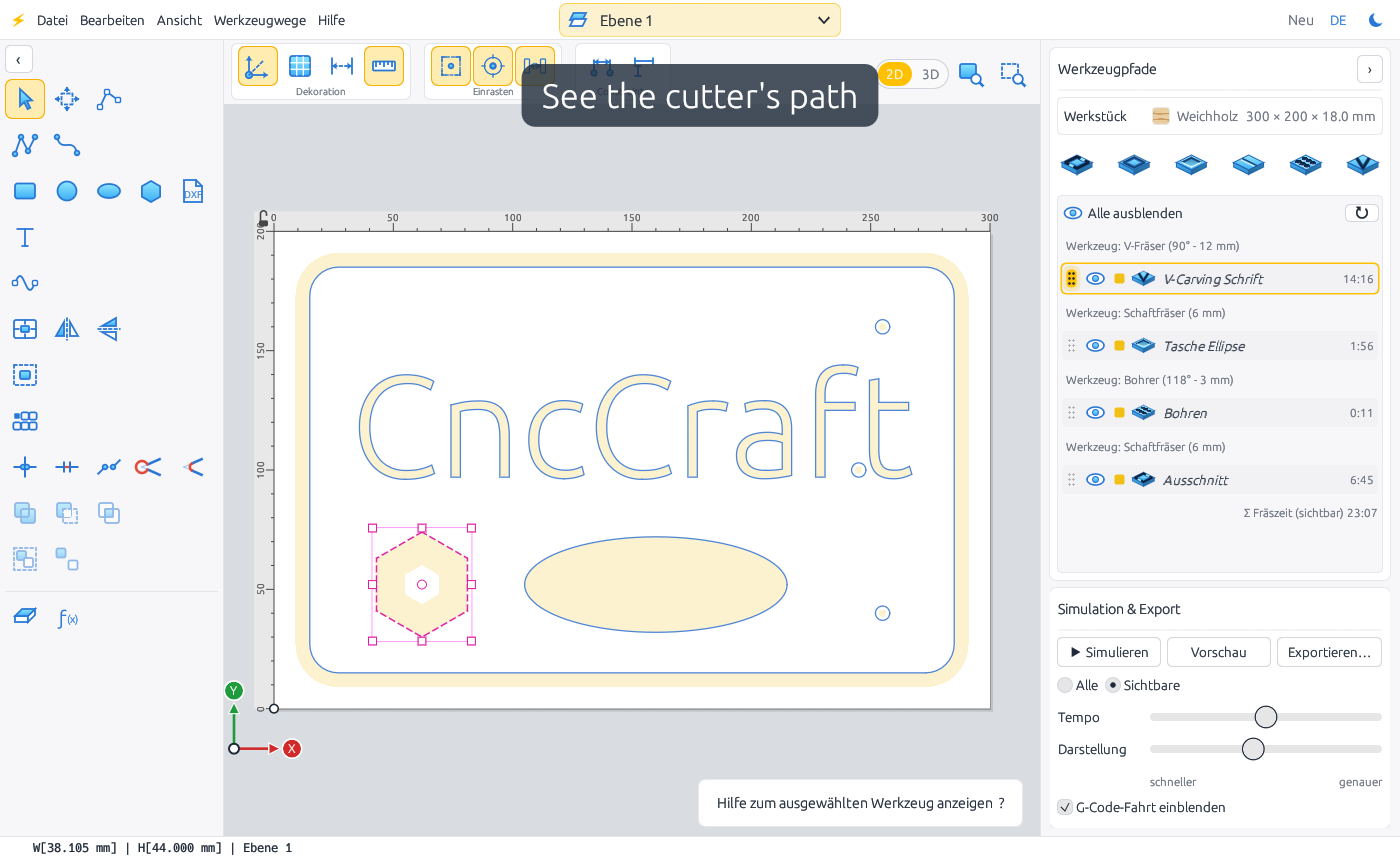
| Show G-code motion | Shows where the cutter travels: in 2D as a band, in 3D as the post-processor's moves (see below). |
Show G-code motion works in both views:
- In the 2D design view the cutter's swept area is drawn over the drawing as a band in the toolpath's colour at 20 % opacity and the width of the cutter — for a V-bit the width follows the depth. The band is computed as the real union of the cutter's path (not many overlaid strokes), so you see clearly where the cutter runs and whether it touches or destroys a neighbouring contour.
- In the 3D preview it overlays the machine's moves as the post-processor writes them: rapid moves dashed, plunges yellow.
The Detail slider (0–100 %) lets you choose between a fast rough view and a fine one. In the 3D view the view cube and the origin axis cross also help you keep your bearings.
Milling time
The list gives an estimated milling time per toolpath and, below it, the total time of the visible toolpaths (The toolpath list). The estimate uses the set feeds and a flat rapid speed; the real time depends on your machine.