 CncCraft
The 3D view New in CncCraft
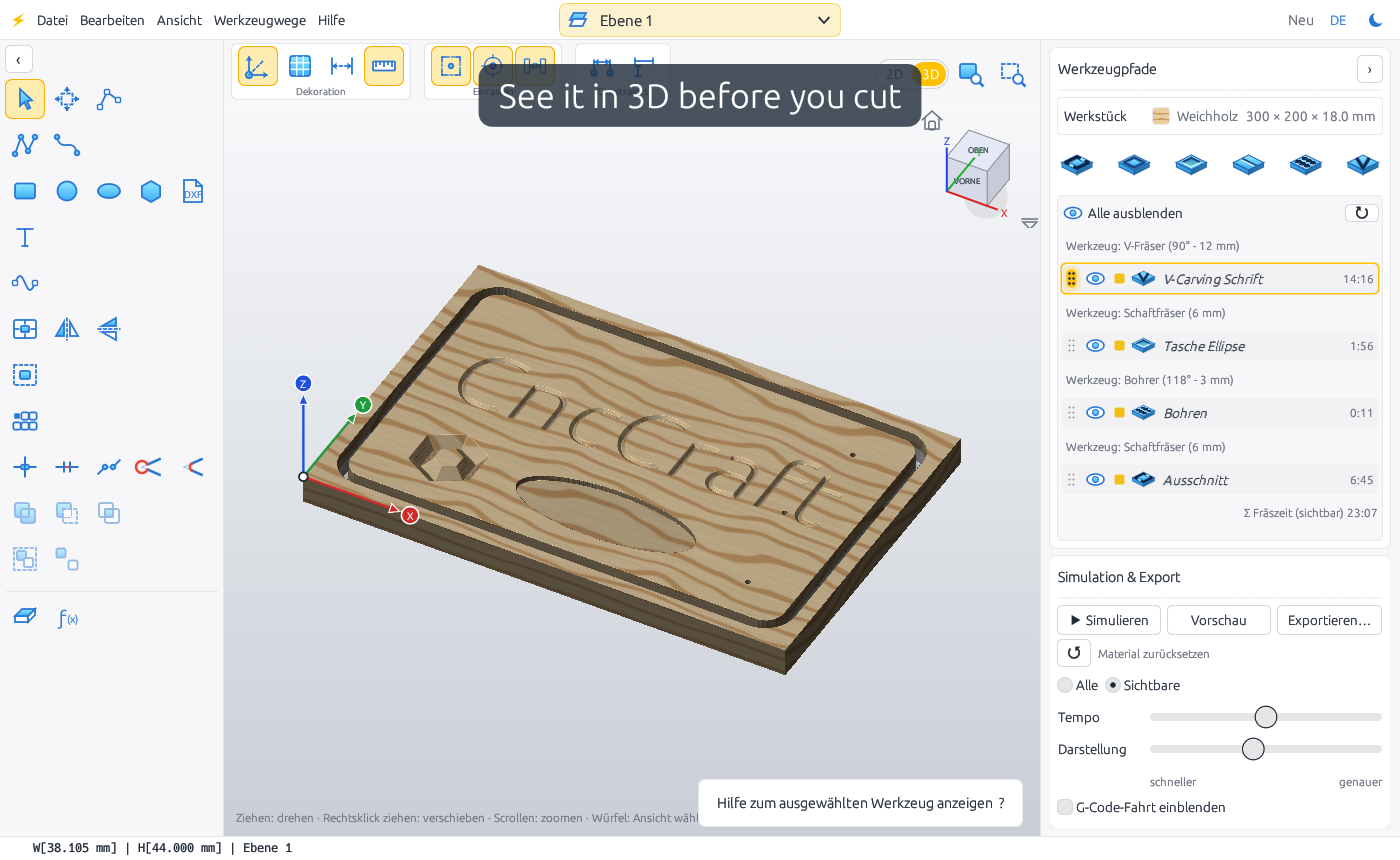
The 3D view shows the workpiece as it will look after milling.
With the 2D/3D button top right (or F2 for 2D and F3 for 3D) you switch the view. In 3D you see the material as a solid; what the toolpaths remove is cut away.
Controls
- Rotate: drag with the left mouse button.
- Pan: drag with the middle or right mouse button.
- Zoom: mouse wheel or two-finger gesture.
- Perspective: in View ▸ Perspective (3D) you switch between perspective and parallel projection.
Orientation aids
Two decorations help you get your bearings in 3D; both can be switched off individually in View ▸ 3D view:
- View cube: shows which side you are looking from.
- Origin axis cross: draws the router's axis cross (X red, Y green, Z blue) at the job's origin. It follows the chosen origin (corner or centre, surface or table).
The origin button shows or hides the axis cross in both views at once.
The toolpaths themselves you overlay with the “Show G-code motion” option — here in 3D as the machine's moves, and in the 2D view as a band in the cutter's width; more under Toolpath preview.