 CncCraft
Construction lines on the ruler New in CncCraft
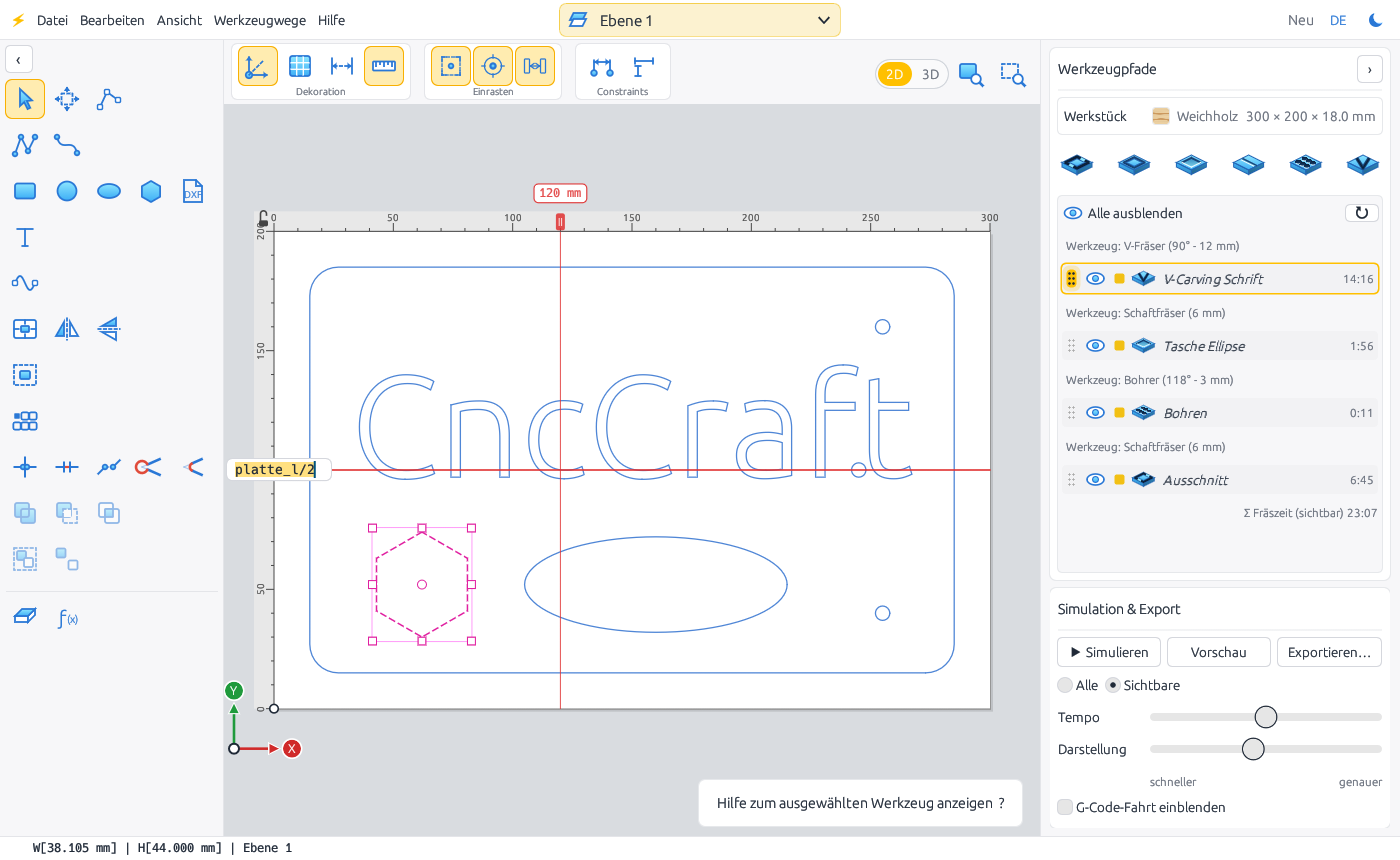
Red construction lines across the workpiece that shapes snap to and hang on – with a value, a formula and a lock.
Spark has similar construction lines; in CncCraft they are also a soft constraint: shapes you drag onto a line stay attached and move along when the line moves – for example because a variable changes.
Turning the rulers on and off
The ruler button in the header (“Decoration” group) shows the rulers along the top and left edge of the board. Construction lines exist only while the rulers are on.
Adding a construction line
- A click in the top ruler adds a vertical line there, a click in the left ruler a horizontal one.
- You can also press and drag in the ruler: the new line follows the mouse until you let go.
Moving – only on the ruler
Each line has a red handle in the ruler. Only there can it be dragged; over the handle the pointer shows a double arrow. In the drawing itself construction lines do not react – so they never get in the way of drawing. While dragging, the line always lands on whole millimetres.
The exact distance
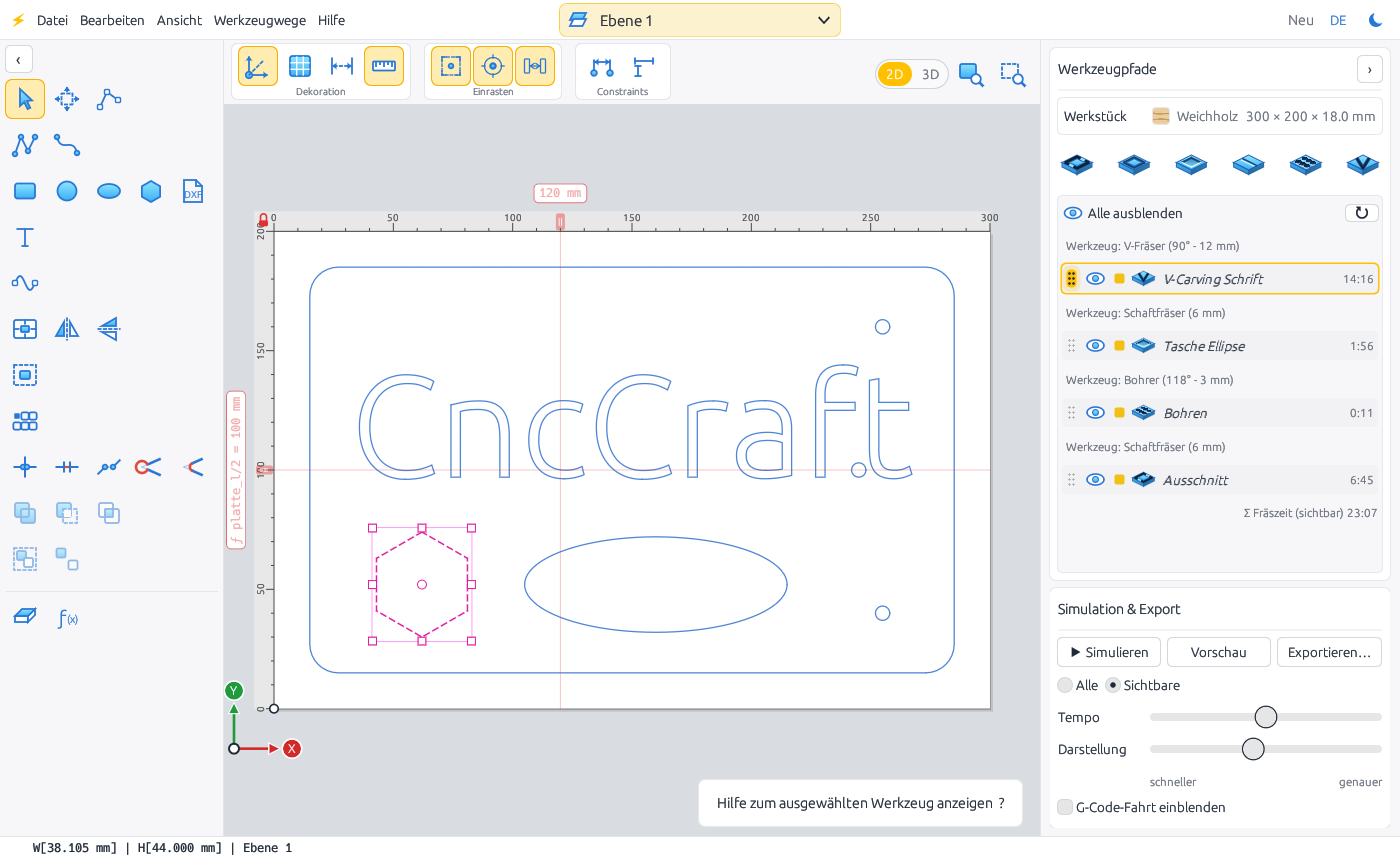
Outside the ruler the line's distance from the left or bottom board edge is shown – in the same label as the values of distances. Over the number the pointer shows a hand: long-press opens it for typing. As in any dimension field, decimals, variables and formulas are allowed; a formula is kept (“ƒ platte_l/2 = 100 mm”), and the line follows when the variable or the board size changes. Drag a formula line by its handle and it becomes a fixed number again.
Making shapes snap
Drag a shape so close to a construction line that its left, right, top or bottom edge or its centre almost touches the line, and the shape turns red and the line grows thicker: let go now and the shape snaps exactly into place.
- The snapped shape hangs on the line: move the line, change its number or its formula, and the shape moves along – and with it the toolpaths.
- Drag the shape itself away again and it comes off the line. That is why it is a soft constraint.
- Snapping happens only when you drag a shape onto a line. Push a line across a resting shape and it does not attach.
Selecting and deleting
A click on the handle selects the line (it grows bolder), Del deletes it. The shapes that hung on it stay where they are.
Locking construction lines
In the corner where the rulers meet sits a lock. One click locks all construction lines; a short message confirms it. Locked lines become thin and semi-transparent, can no longer be added, moved, edited or deleted – but shapes still snap to them. Another click unlocks them.
Undo
Adding, moving (a whole drag is one step), changing the number and deleting can be undone with ⌘Z; attached shapes go back with them. Construction lines and the lock are saved with the project.