 CncCraft
Pattern (array) New in CncCraft
Turn one shape into a rectangular pattern of linked copies that stays alive with the shape.
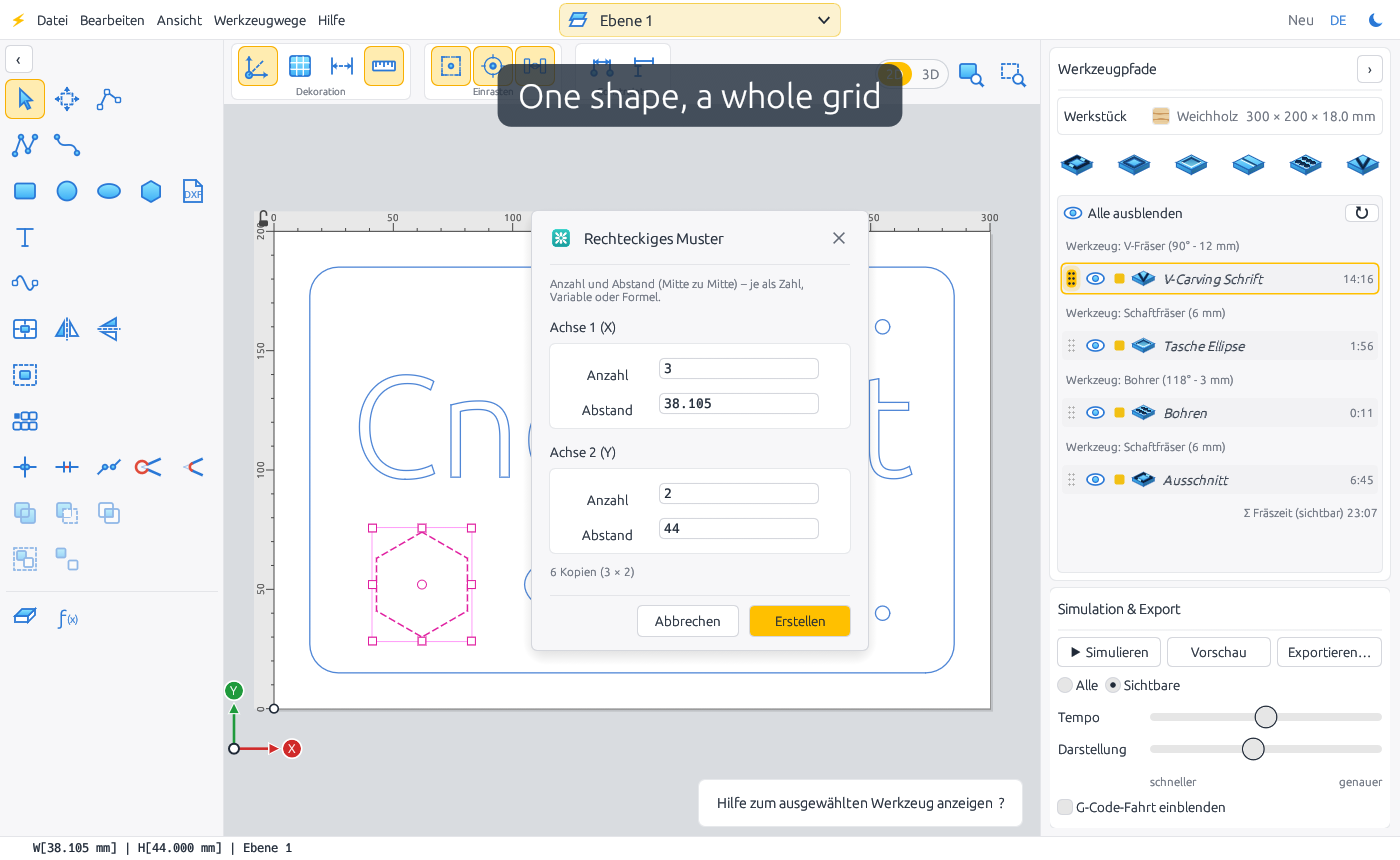
The Pattern tool (between Offset and the vector operations) turns one selected shape into a rectangular pattern. Unlike a plain copy, the pattern stays live: the copies (the “children”) hang on the source shape and follow it.
Select a shape, open the tool and fill in the window:
| Field | Meaning |
|---|---|
| Axis 1 (X) · Quantity | How many shapes side by side (the source counted in). |
| Axis 1 (X) · Distance | Centre-to-centre distance across the width. |
| Axis 2 (Y) · Quantity | How many above one another. |
| Axis 2 (Y) · Distance | Centre-to-centre distance over the height. |
What makes a pattern special
- The source gets a small pattern marker (four dots). A double-click on it reopens the window for changes.
- The children are drawn semi-transparent (60 %), as shadows of the source.
- The children are firmly tied to the source: they can only be selected together, not one by one.
- Move the source and the whole pattern moves. Delete the source and the children go too.
- A toolpath or any other tool always applies to the source and acts on every child. Children have no toolpaths of their own.
Dissolving a pattern
With Ungroup (⇧⌘G) you dissolve the pattern: from then on each copy stands on its own, gets the source's toolpaths copied onto it and can be edited individually.
Quantity and distances take numbers, variables and formulas. For example platte_b / 50 columns fill the board whatever its width, and when a variable changes the pattern rebuilds – all in the spirit of parametric work. Every step can be undone.