 CncCraft
The design view
In the 2D view you draw and edit; rulers, grid and snapping help you.
The drawing area shows the workpiece from above: the board with rulers along the top and left edge and the coordinate cross at the origin. The value in the ruler is in the job's unit. A click in the ruler adds a construction line.
Moving around
- Zoom: with the mouse wheel or a two-finger gesture (toward the pointer).
- Pan: drag with the middle or right mouse button.
- Whole view (F4): shows the whole workpiece. Zoom to selection: shows the selected shapes.
The header
Above the drawing are two groups of switches:
- Decoration: show the origin, snap to the grid, snap to geometry (see Snapping), show the dimensions, and show or hide the rulers with the construction lines. Each decoration is also a tool: the grid is only visible while snapping to it is on; the rulers are only there while you can set construction lines with them.
- Constraints: Distance (D) and Level/upright (H) – see Dimension distances and Set level and upright.
Top right, the 2D/3D button switches between design and the 3D view; next to it a button turns the origin (axis cross) on or off.
The toolbar
On the left the tools sit in groups: mode (select, transform, node edit), lines, shapes, text, edit objects, align and mirror, offset, pattern, boolean operations and – set apart – job setup and the variables. The small arrow at the top left shrinks the bar; each group then shows only the last tool used.
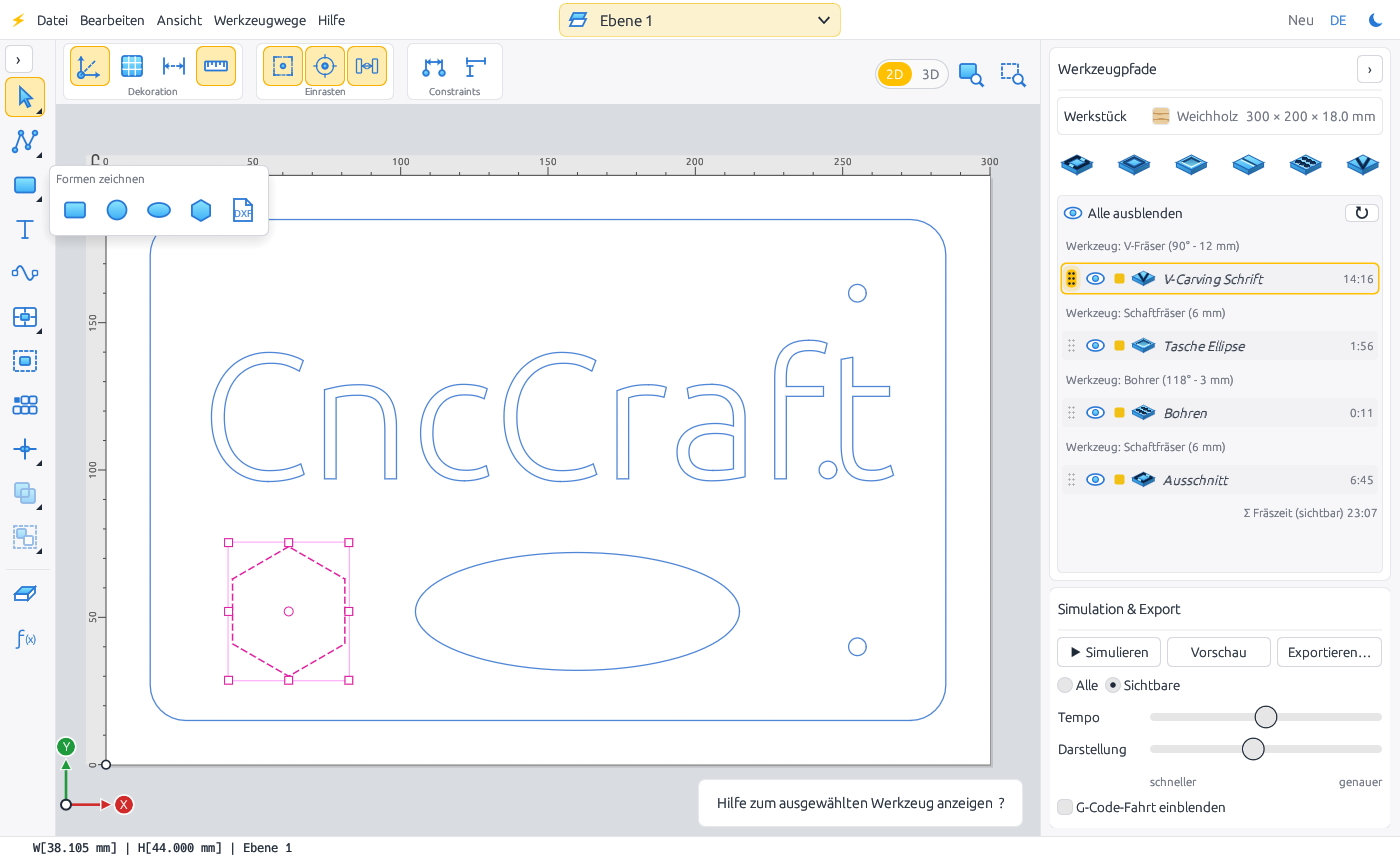
Hover over a tool and a short tooltip appears. The status line at the bottom also says what to do next (for example “Pick the second point”).
Worksheet decorations
What the drawing area shows in addition you switch one by one in View ▸ Worksheet: board, rulers, coordinate cross and hints. The grid is not there – it follows the “Snap to grid” switch.
Colours
Shapes, their toolpaths in the list and the drawn cutter paths all carry the colour of their layer. Change a layer's colour (Layers) and all three change with it.