 CncCraft
Create and set up a new job
The job describes the workpiece: size, material and the router's origin.
The dialog is called “Create job” when you begin a new file, and “Set up job” when you open it later via Edit ▸ Set up job …, the button in the toolbar or the “Board setup” row on the right.
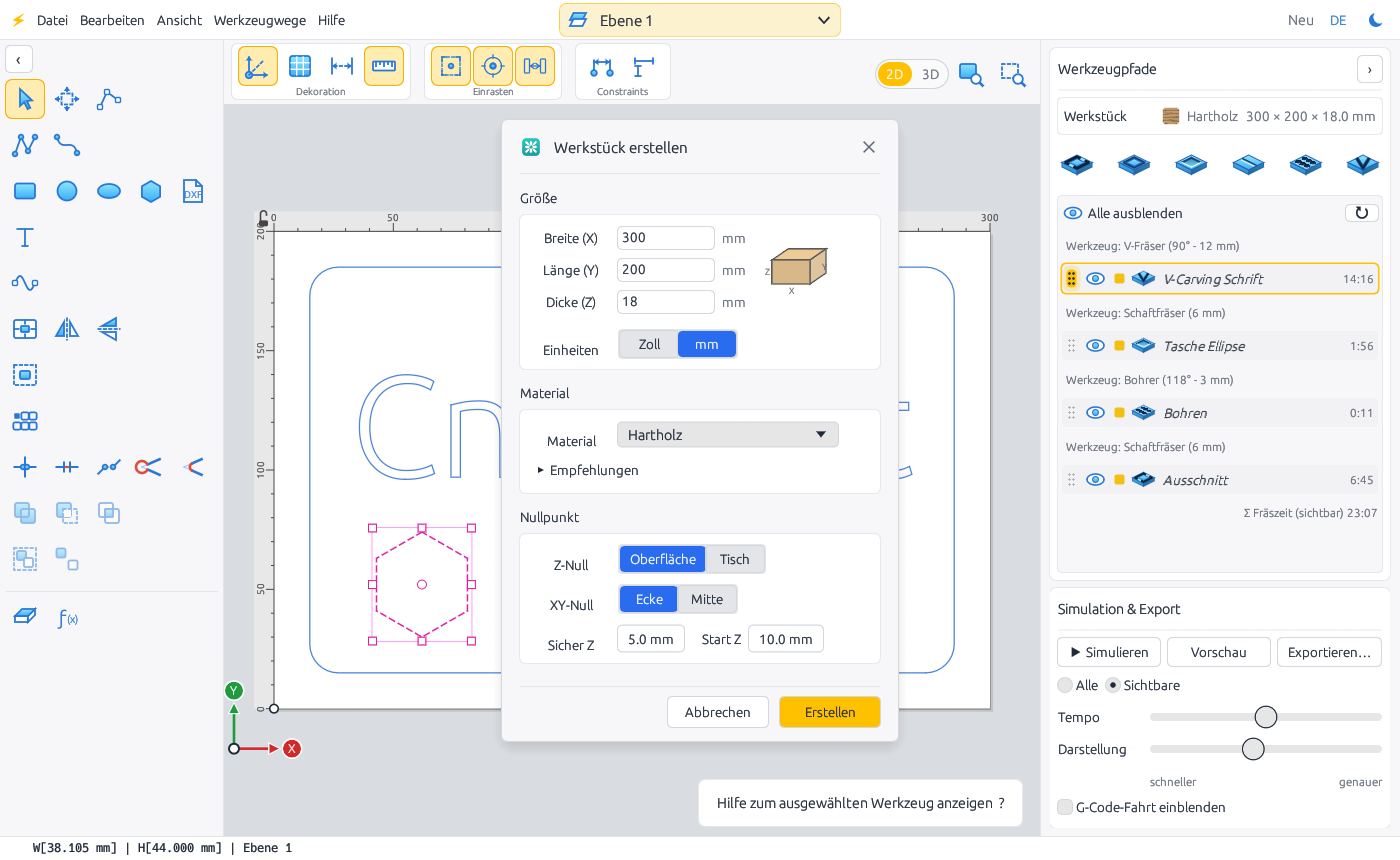
Job size
- Width (X), length (Y), thickness (Z): the dimensions of the blank. The small sketch shows which side matches which axis.
- Units: inches or millimetres. On switching, the numbers are converted; internally the file is stored in millimetres.
Material
No job can be created without a material – the Create button stays grey until one is chosen. The list holds ten materials from softwood to aluminium, each with a small swatch. It determines the tools and cutting values (see Tools and cutting values), the warnings for cuts that are too fast or too deep, and the look in the 3D view.
- Recommendations (collapsed): a click shows spindle speed, maximum feed, stepdown, suitable cutters and cooling for the material.
- Manage … at the end of the list opens the material settings, where you adjust values and add your own materials (Materials and limits).
Origin
- Z zero: Surface – the top of the material is height 0, cut depths count downward. Table – the bottom is height 0.
- XY zero: Corner (lower left) or Centre of the workpiece. That is where the origin sits in the G-code file later too.
- Safe Z and Start Z: the heights the router travels at between cuts, and the machine's start height.
Size and thickness are then available as the variables platte_b, platte_l and platte_d. So a cut depth can be entered as platte_d/2, for example – see Variables.
If you change an existing job, CncCraft recomputes all toolpaths with the new values.
A new job always starts with your last settings – size, units, material and origin. If you mostly mill the same board, you only have to click Create.